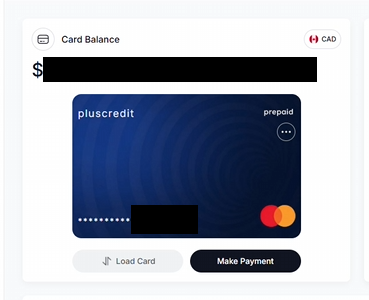
How to Load Funds via Interac e-Transfer

PlusCredit Website
Last Update hace 5 meses
If you prefer not to link your bank account directly, you can easily load funds or place your security deposit using Interac e-Transfer.
This process uses a secure "Request for Money" sent directly to your email.
Follow these steps to complete your load via Interac.
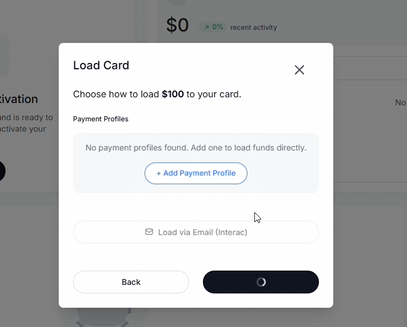
Step 1: Select "Load via Email (Interac)"
When prompting a card activation or a balance top-up, the Load Card window will appear. Instead of creating a profile, click the button that says Load via Email (Interac) at the bottom.
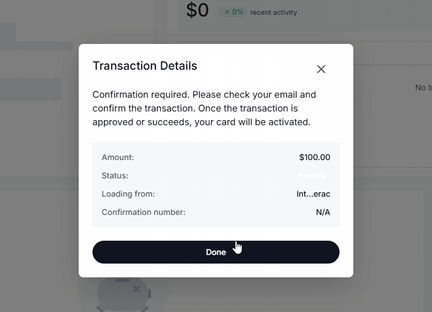
Step 2: Review Transaction Details
A Transaction Details window will populate showing your requested load amount, a "Pending" status, and a notice to check your email. Click Done to close the prompt on your dashboard.
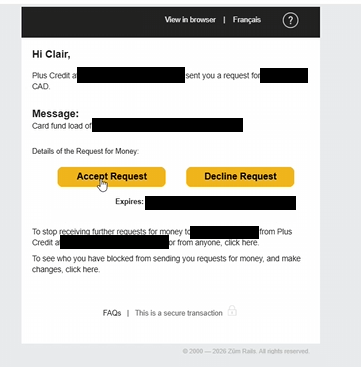
Step 3: Accept the Request in Your Email
Check the email inbox associated with your Plus Credit account. Look for a secure Interac Request for Money sent via Züm Rails. Open the email and click the yellow Accept Request button.
Step 4: Choose Your Bank
You will be redirected to a secure Interac portal. Scroll through or search the list to select your financial institution.
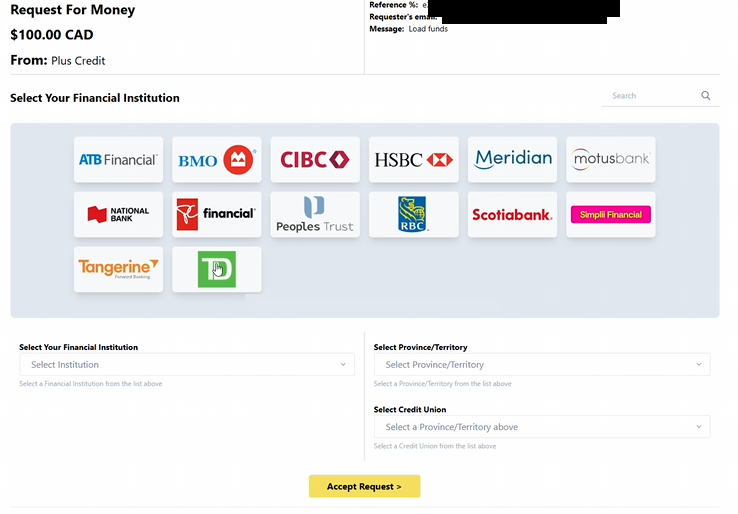
Step 5: Log In and Complete the Transfer
Once you select your bank, you will be automatically redirected to your bank's official online banking website or app. Log in securely using your personal banking credentials. Confirm and approve the Interac e-Transfer request.
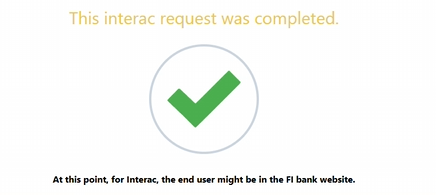
Success!
Once approved on your bank's side, the Interac request will show as completed. Head back over to your Plus Credit dashboard. Your funds will be successfully applied, and your updated Card Balance will reflect your new total.