
How to Add Your PlusCredit MasterCard to Apple Wallet

PlusCredit Website
Last Update hace 5 meses
Want to make quick, secure payments on the go? You can easily add your pluscredit virtual or physical card to your Apple Wallet. To do this, you'll just need to grab your full card details from your online dashboard.
Follow this step-by-step guide to get set up in minutes.
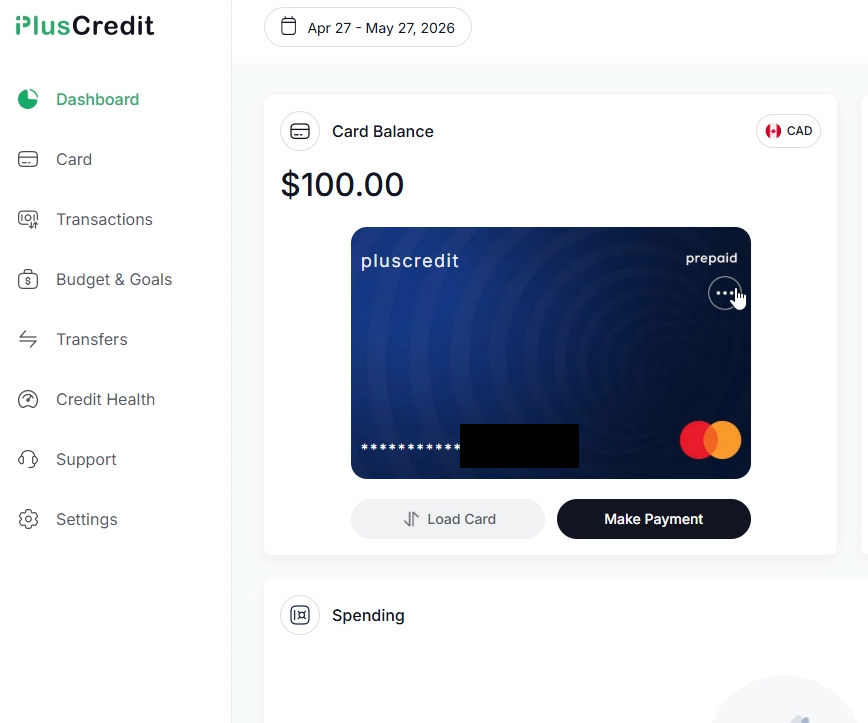
Step 1: Open Your Card Menu
Log into your pluscredit dashboard. On the main Dashboard screen, you will see your virtual card. Click on the three dots (...) icon located in the top-right corner of the card image.
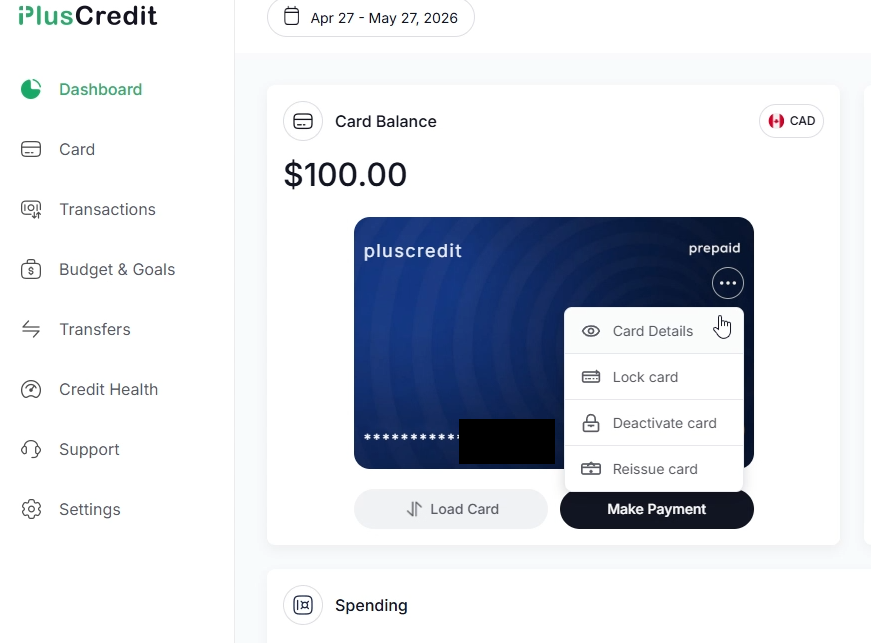
Step 2: Select "Card Details"
A dropdown menu will appear with several card management options. Click on Card Details at the top of the list.
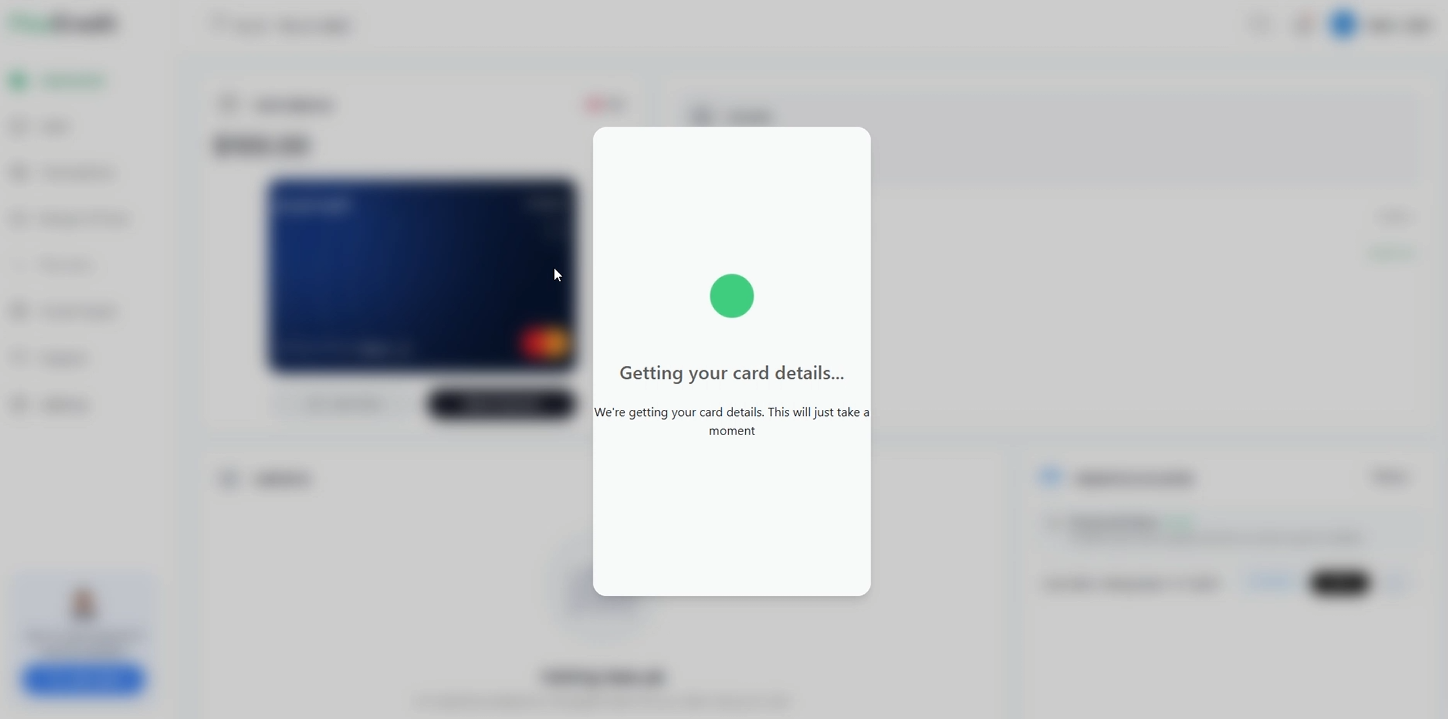
Step 3: Wait for Your Details to Load
A secure pop-up window will appear saying "Getting your card details..." while the system safely fetches your account information. This will only take a moment.
Step 4: Reveal and Copy Your Card Information
Once loaded, a Card Details window will appear. For security, your information may be hidden at first. Click the green Reveal Card Details button at the bottom of the window for each row.
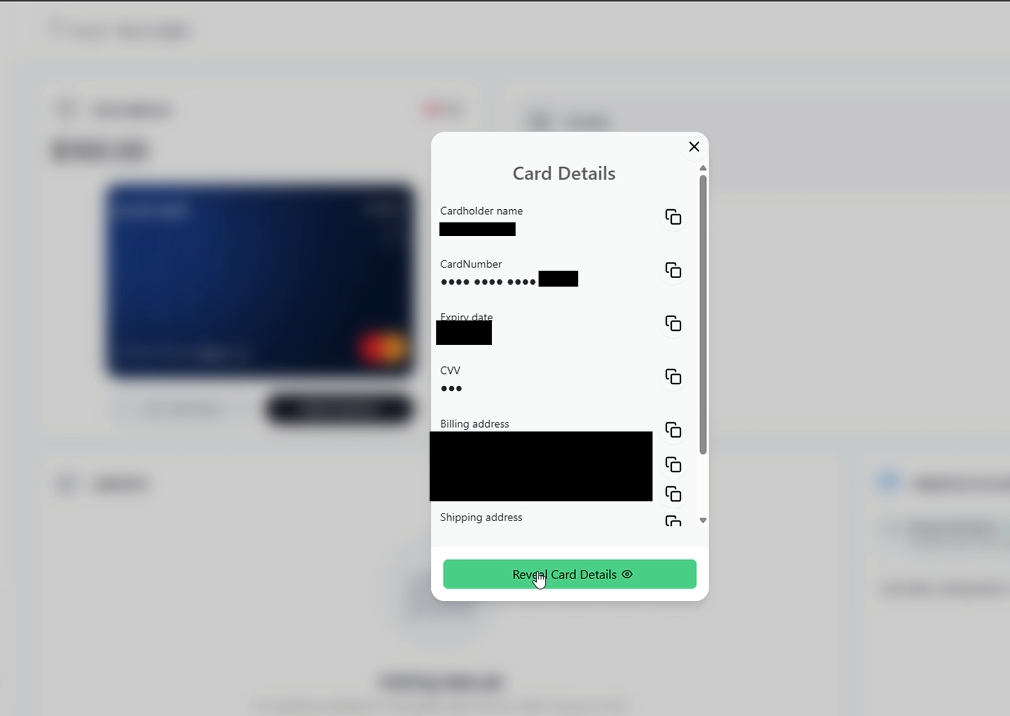
You can also use the copy icon (two overlapping squares at the end of each row) next to your Cardholder Name, Card Number, Expiry Date, CVV, and Billing Address to easily copy the text without having to type it out.
Step 5: Add the Details to Your Apple Wallet
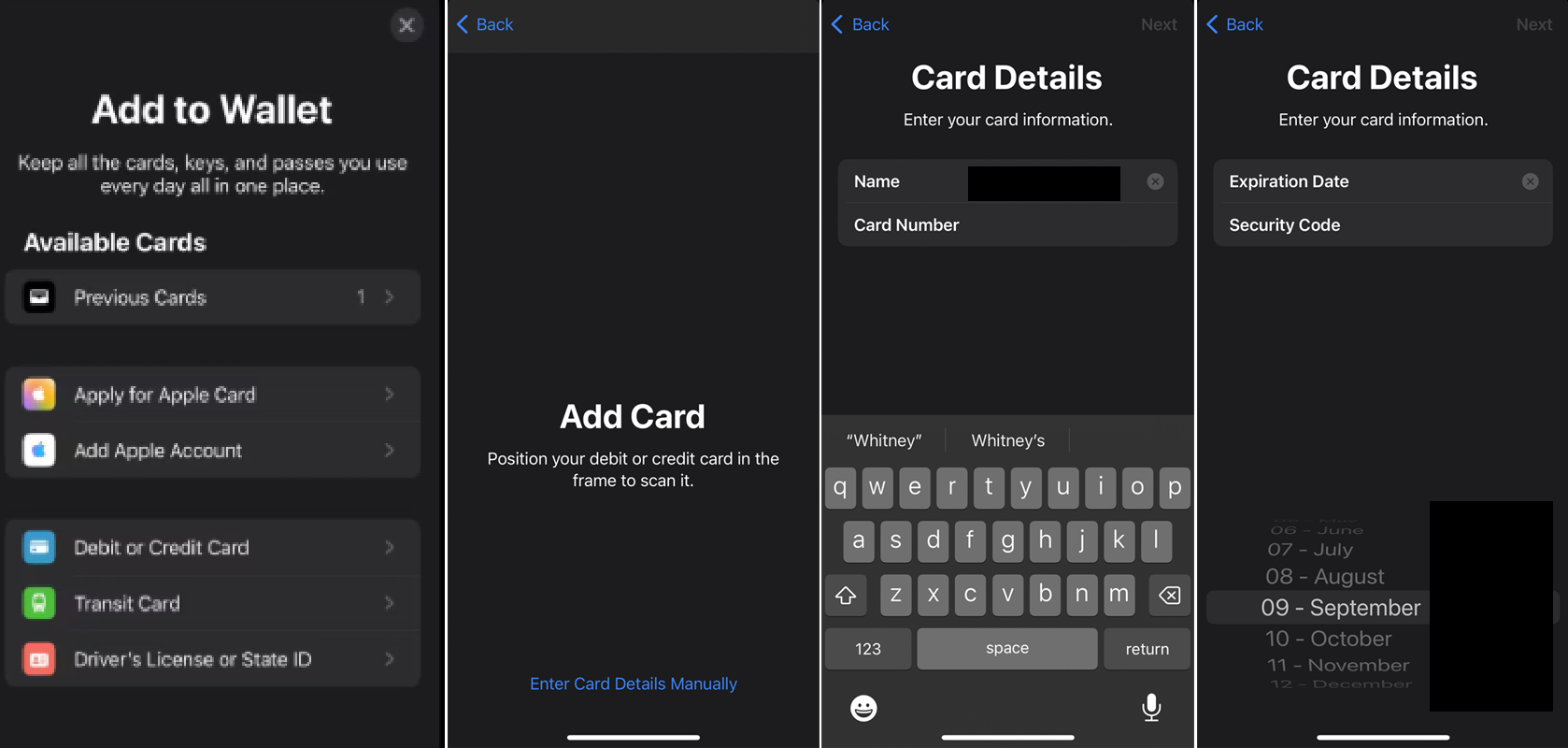
Now that you have your card information ready, switch over to your iPhone. Select Debit or Credit Card. Tap Enter Card Details Manually.
Enter card details from your dashboard.
Step 6. Final Steps
Follow the on-screen prompts to accept the Terms of Service and complete any quick security verification before you use the card.
Success! Your pluscredit card is now ready to use with Apple Pay.