How to Add or Update Your Payment Method - Bank

PlusCredit Website
Last Update hace 5 meses
Need to add or update your existing payment methods?
You can securely link your primary bank account directly through your Plus Credit settings using our secure partner, ZÜm Rails. Follow these simple steps.
Step 1. Go to Your Settings
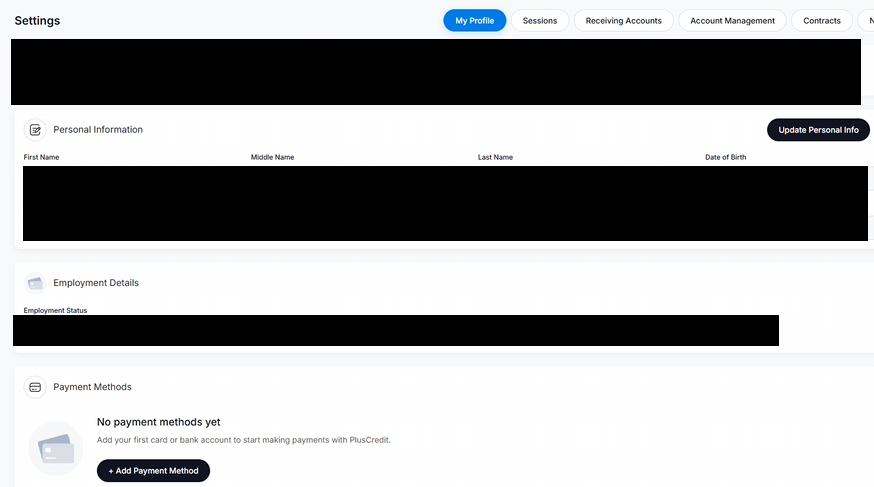
Log into your Plus Credit dashboard and navigate to Settings from the main menu. Scroll down to the Payment Methods section at the bottom of the page and click the + Add Payment Method button.
Step 2: Choose "Bank" and Enter Your Required Information
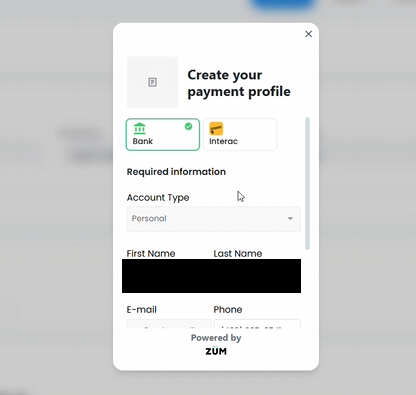
A secure pop-up window titled Create your payment profile will appear.
- Ensure Bank is selected as your payment type.
- Select your Account Type (ex. Personal) from the dropdown.
- Fill in your First Name, Last Name, E-mail, and Phone number.
Step 3: Accept the Terms and Conditions
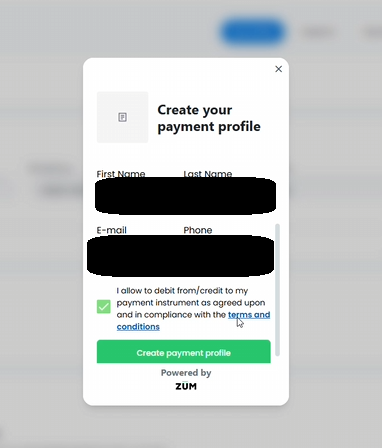
Scroll down to the bottom of the form, review the terms, and check the box confirming your authorization. Once checked, click the green Create payment profile button.
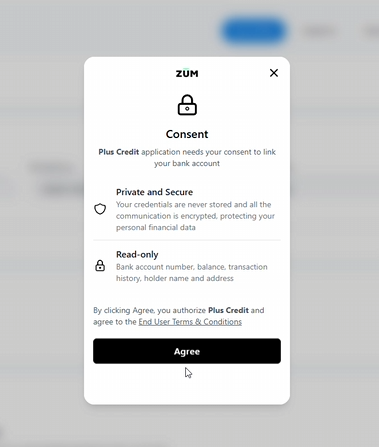
Step 4: Authorize Secure Bank Connection
Plus Credit partners with ZÜM to ensure your banking information is handled safely. Review the data consent information showing that your connection is private, secure, and read-only. Click Agree to proceed.
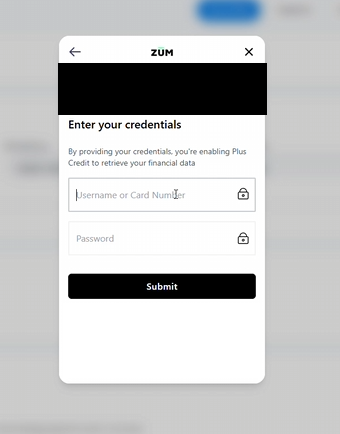
Step 5: Enter Your Banking Credentials
A secure ZÜM portal will open. Enter the Username or Card Number and Password you normally use to log into your online banking app, then click Submit.
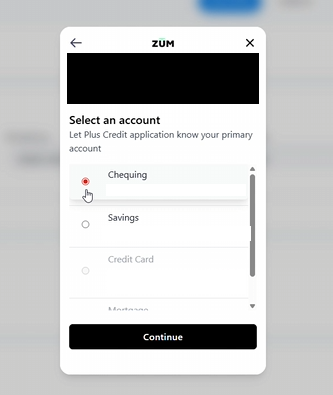
Step 6: Select Your Primary Account
Once connected to your bank, select which account you want to use as your primary source (e.g., Chequing or Savings) by clicking the radio button next to it. Click Continue.
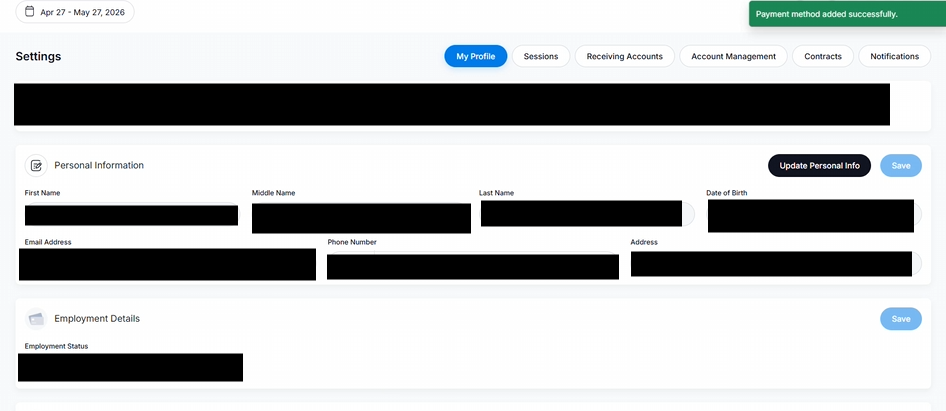
You will be redirected back to your Settings page. Look for the green confirmation banner in the top-right corner indicating "Payment method added successfully." Your new bank account is now linked and ready to go!